 COME
COMECOME Login help versus creating another account
Use the recognised existing-account and recovery routes when trying to return to an account.
Work through this situation
A new registration is not a substitute for recovering history or referral progress. Keep the exact access error and use the relevant help topic; do not share a one-time code with someone offering to recover the account.
What to check and why
Begin with the existing-account route and identify the exact obstacle: an unrecognised credential, a missing code, a locked session or another displayed message. Use the corresponding legitimate recovery guidance. A new registration creates a different access context and cannot be assumed to restore the old account's activity or invitation history.
Keep the old working device available when possible until you confirm the intended account on the new screen. Never share a one-time code with someone offering informal recovery. If you contact the app's help route, describe the stage and error without disclosing secrets. Successful installation and successful account recovery should each be confirmed separately.
Recognise the relevant screen
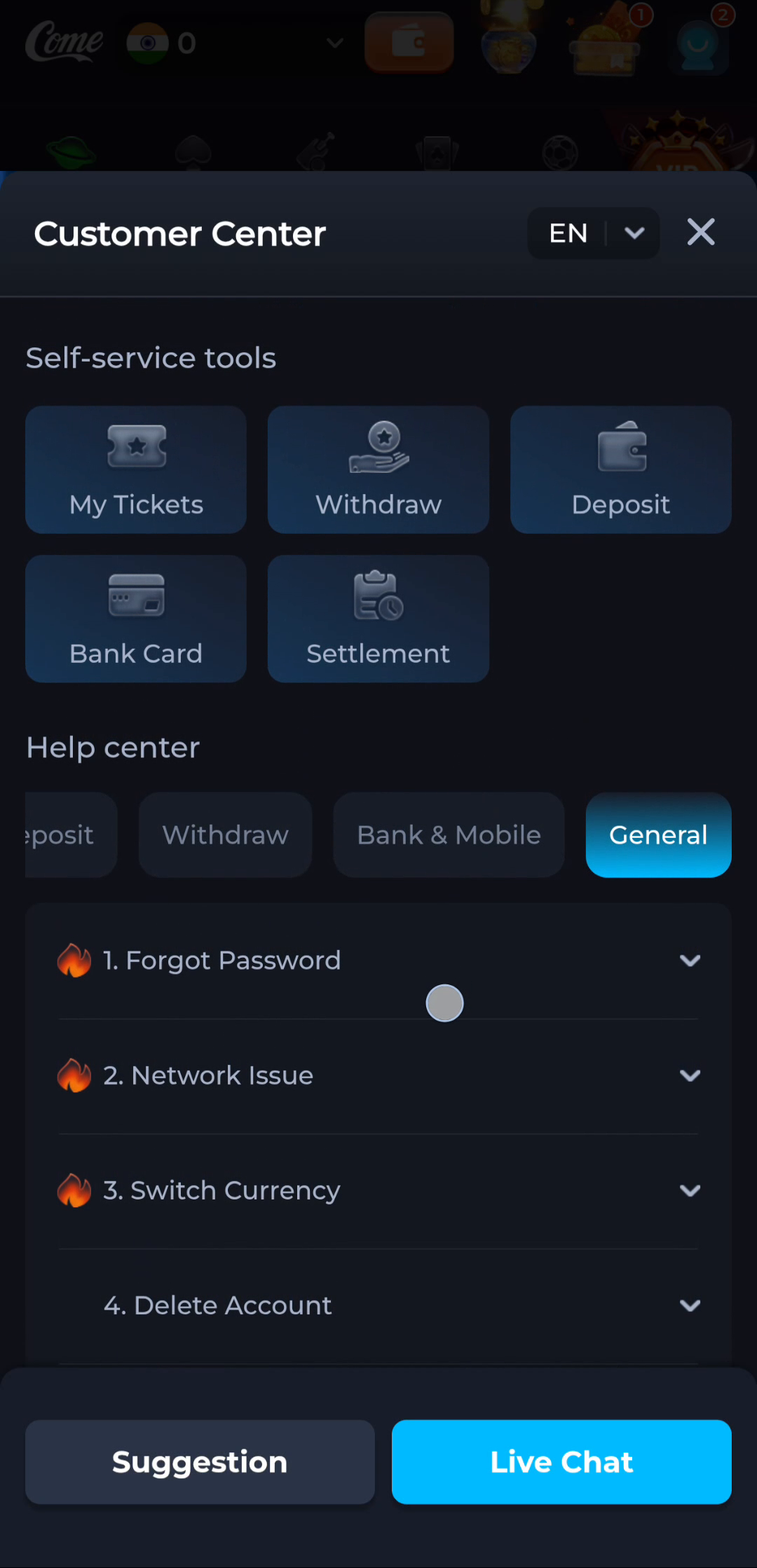
Match help to the task
The account menu and Customer Center provide different routes for preferences, records and assistance. A help-category answer explains a topic, while an account-specific issue needs the relevant service context. Read the visible wording on your own screen because layouts can change. This website provides explanations and navigation; it cannot complete an account action or alter a service record.
What a completed answer looks like
Access is restored to the intended account, or the correct support route has the necessary non-secret context.
If the screen still does not answer the question, keep the exact wording and use the matching in-app help context.
Choose another specific COME guide